
 Amy Elderkin
An Illustrated Guide to Setting up AdSense for your .TEL
If like many of us, you invested in a few .TEL names that you hope to sell one day, you might have been interested in Telnic’s announcement that from the beginning of April, they would be supporting Google AdSense.
Google AdSense is the program that pays you to put mini-ads on your web site. While AdSense has several models, AdSense for Content examines the content of your web site (or .TEL) and matches applicable ads to the content.
For our trial, we took one of our .TEL names, soccer.tel and hooked in AdSense for Content in three easy steps:
- Create an AdSense account
- Create an “AdSense for Content” ad unit
- Setup the .TEL to display the ads
I’m going to skip over the creating an AdSense account section as it’s a simple process of visiting www.google.com/adsense and following the sign up process. Instead, I’m going to insert a small but important step, which is getting your .TEL content-ready.
AdSense for Content works on the content of your .TEL, so you need to ensure there’s some content there. Fortunately my son and his friend are avid soccer fans and agreed to take over the management and population of content for the .TEL.
Over the past few days they’ve put together a great resource, tying in:
- Twitter: http://twitter.com/SoccerDotTel
- Facebook: http://www.facebook.com/soccer.tel
- A blog: http://soccerdottel.blogspot.com/
All are promoting soccer.tel and are driving traffic to it.
So with some content in our .TEL and an AdSense account created, we’re ready to create some ads.
Create an AdSense for Content Ad Unit
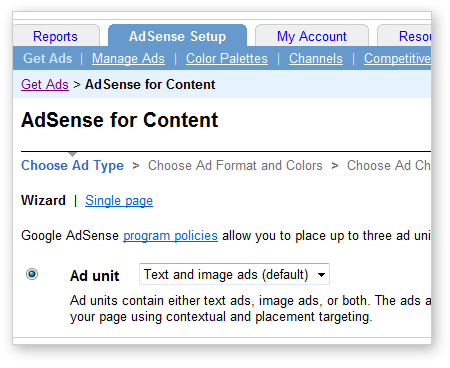
Login to your AdSense Account and with the AdSense Setup tab selected, click AdSense for content to start the wizard.
For the first ad, leave the default Ad Type set to “Ad unit: Text and image ads (default)”. Click the Continue button.
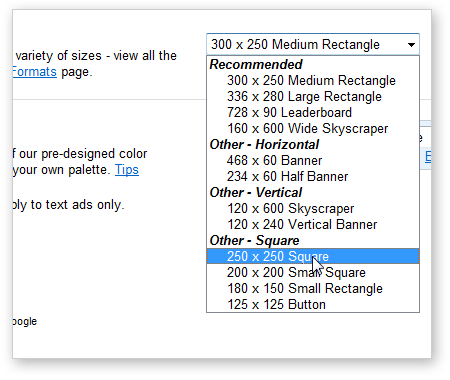
The ‘Choose Ad Channels’ step can be skipped over by clicking the Continue button. Channels allow more detailed tracking of your ad performance but this is an advanced topic and not required to get up and running.
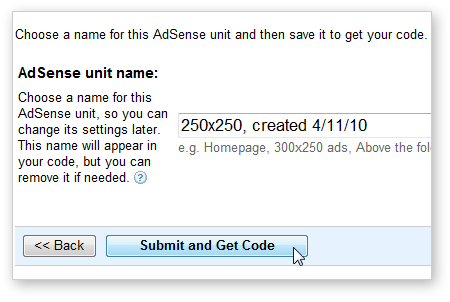
On the ‘Save and Get Ad Code’ you can name your AdSense unit name. You can leave the default name and click the Submit and Get Code button to create your ad.
The final screen of the wizard confirms creation of the AdSense unit. A notice advices that Changes may not appear for up to 10 minutes. The screen also provides an area that contains a code snippet, but this is not needed when you are going to use AdSense with a .TEL. Click the Manage Ads link below the AdSense Setup tab.
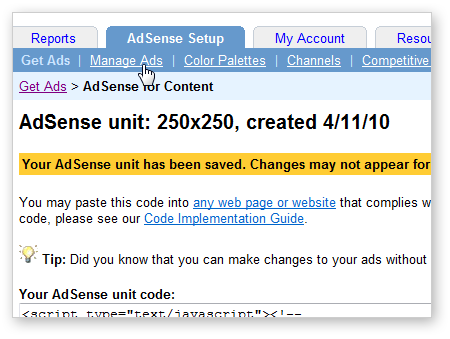
The Manage Ads screen displays a list of active AdSense units. You can use this screen to edit the ad but for the moment we are interested in two references; the Ad Code and Publisher ID.
- The Ad Code is the grey text number in parenthesis immediately below the AdSense unit name in the list of ad units.
- The Publisher ID can always be found in the top right of the screen below your login details.
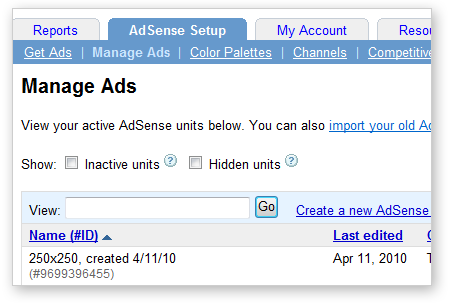
Copy these two numbers or open a new web browser window for TelHosting, so that you can easily copy the codes from AdSense to TelHosting.
Setup a .TEL to Display AdSense Ads
Waiting a few moments before you start setting up the .TEL is a good idea to give Google the 10 minutes it needs to process the ad. If the ad isn’t set up by the time you add it to the .TEL, you will see a Page Cannot be Displayed error in the space where you would expect to see the ad. You don’t need to do anything, and the ad will start to be displayed once its ready.
Log into your TelHosting account where you manage your .TEL name. If you have more than one .TEL name, remember to select the correct one from the dropdown list in the top right corner.
Click the “Settings” link at the top of the TelHosting screen and then select “Google AdSense Setup” from the left hand menu. If the AdSense link isn’t visible in the Edit Settings popup you will need to contact your provider to activate it.
Copy and paste the Publisher ID and Avert ID – 1 into the appropriate boxes and click the Save button.
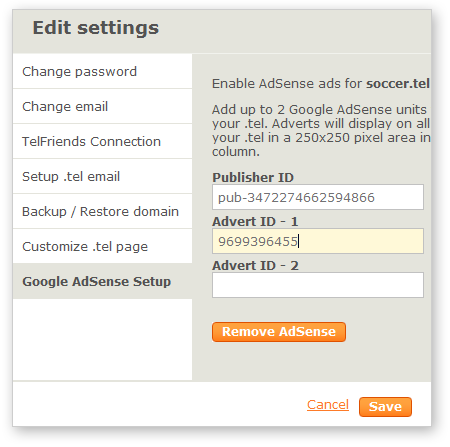
That’s it. You have now added an AdSense ad to your .TEL name. Enter the .TEL name in a browser to see the results. As an example, see http://soccer.tel. If the ad doesn’t show up immediately, don’t worry. Remember it can take a few minutes for your .TEL to update and Google AdSense needs up to 10 minutes to process the ad request.
Depending on the content of your .TEL, you should notice that the ads are closely matched. Sometimes the ads don’t appear to be directly related to the nature of your content, but if you examine the words in your content, you should be able to determine why an ad is showing up. The more unambiguous your content, the more closely the ads will match your .TEL. AdSense also takes into account your browsing history and the ads it has served to you on other sites, so this can be a factor too.
Once you’ve added your first ad you can go back and create a second AdSense for Content unit. http://soccer.tel has two units. The first is a “Text and images ads” like the one created above. The second is an “Images ads” unit which only displays image ads. No matter what type you choose, you must always select the size 250×250, otherwise the content will not fit properly on your .TEL.
Try refreshing the page at http://soccer.tel a few times. You’ll notice that sometimes it displays a set of text ads together with an image ad and sometimes it displays two image ads. Clicking an AdSense ad opens the destination site in the same window, so visitors will navigate away from your site, but you make a few cents every time someone clicks an ad.
You can test out your .TEL ad, but don’t be expect to make money every time you click. Google monitors and tracks where the clicks are coming from to determine what is a real clickthough and what isn’t.
Note that depending on how much information you provided when you created your AdSense account, you may be required to provide additional information, including tax details before Google can release payment for your account.
We were delighted to see that within the first hour of setting up the ad we were already starting to make money and in the hours that followed, the Total Estimated Earnings continued to rise.
If you’ve registered a .TEL name, whatever you do, don’t just let it sit there. AdSense is a great way to pay for the renewal and make a little profit or pay for a few more .TEL names for your portfolio. Developing the .TEL and submitting it to the search engines, gets you on the path to better page ranking and traffic. Over the past year, we’ve continually seen .TEL names make the first page of the major search engines and in a number of cases, the Google Pagerank of .TEL names out performs their .COM and .CA counterparts.
Remember to tie your .TEL into Twitter, Facebook and Linkedin, as well as your blog and web site. It can be a valuable and integral part of your social media and search engine marketing strategies, driving traffic, providing a mobile presence and improving your overall online visibility.
P.S. As a quick postscript to this article, I’d like to extend my gratitude and tip my hat to the editors of soccer.tel. What started off as a weekend exercise to illustrate AdSense for .TEL has for them turned into a labour of love and what can only be described as a remarkable resource for anyone interested in the game of soccer (and yes, that means football). Billy Walker-Lane and Ashley Perry, two lifelong Chelsea supporters with a passion for the game have continued to build out soccer.tel and will be continuing to develop it in the months and possibly years ahead. If you’d like to give them some feedback or have suggestions for soccer.tel, you can reach them at billywalkerlane.tel and ashleyperry.tel.
Great tutorial well explained. This helped me to set up the adsense though I’m still tiring to optimize the look at feel aspect of a dot tel site.